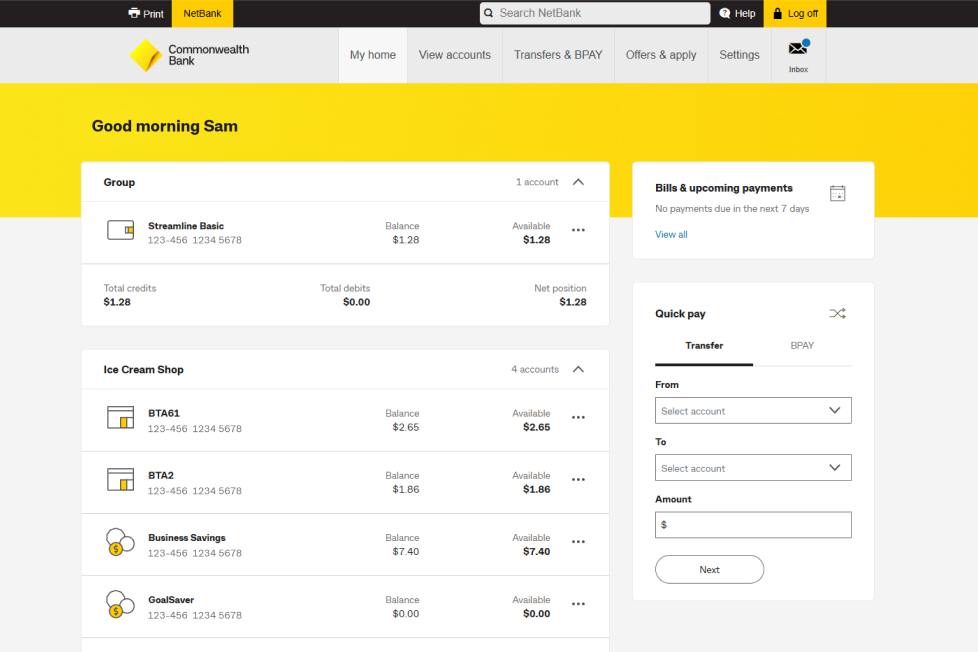
How do I know which version I'm using?

Compare the image on the left with your NetBank home page. If your NetBank matches the example, use the guides on this page.

Personal details & security

Update your personal details and stay safe online by managing your own security in NetBank.

You’ll need your:

  • Debit card, credit card (excluding American Express cards), Keycard or Travel Money Card
  • Card PIN
  • Mobile phone

If you don’t have a card, or your card isn’t activated yet, or you don’t know your PIN, give us a call so we can help you.

  1. Go to Retrieve your log on details
  2. Enter your Card number and Card PIN, then click Next
  3. Click Get NetCode or answer two of your security questions

You can change your Australian address, landline phone number or email address in NetBank.

  1. Log on to NetBank 
  2. Go to Settings and select My contact details under the Profile column
  3. We’ll send you a NetCode to your mobile phone
  4. Enter the code in NetBank and click Next
  5. Update your details and Save changes. The update will happen immediately and we’ll send a message to your NetBank inbox with the details

Tip - If you live in an apartment or unit do not include symbols in your address, enter it like this: UNIT 123 456 SMITH ST

  1. Log on to NetBank  and go to Settings
  2. Under Profile go to Tax file number
  3. Choose an option from the drop down
  4. Tick each account you want to apply it to, then click Submit

To change or unlock your NetBank details (such as your client number or password) you’ll need your CommBank card, card PIN and mobile phone handy.

  1. Go to the NetBank log on page and choose I’ve forgotten my log on details
  2. Enter your Card number and Card PIN then tick I need to reset my NetBank password and click Next
  3. Click Get a NetCode then enter the NetCode we sent to your mobile phone and click Next
  4. Your client number will be displayed and you'll be able to create a new password before continuing to NetBank

If you don't have a CommBank card, don't know your PIN or your card isn't activated, please call us on 13 2221

  1. Log on to NetBank
  2. Go to Settings, then NetCode
  3. If you’re already registered, we’ll tell you at the top of the page, otherwise follow the steps to do so.

Your NetCode will only last for 2 minutes. For added security, you should delete the notification after use

Card & account maintenance

Manage your card and account details in NetBank.

Decrease your limit or apply for an increase.

  1. Log on to NetBank and go to Settings
  2. Select Product requests
  3. Click on Credit card limit changes

Increasing your limit

You can apply for a credit limit increase anytime. If your application is approved, your new limit will be applied to your card instantly. 

Decreasing your limit

You can permanently decrease your credit limit anytime. It is important to remember that you won’t be able to change it back automatically, you’ll need to reapply for a limit increase which may be subject to verification.  Each CommBank credit card has a minimum limit, if you’d like to decrease your limit below the minimum you’ll need to switch to another credit card in our range

  1. Log on to NetBank and go to Settings
  2. Choose Card Settings under Card security & limits
  3. Then select Change under Spending cap

Set the maximum amount you can transfer or spend per day.

  1. Log on to NetBank and go to Settings
  2. Select Transfers and BPAY daily limits
  3. Once you’ve updated your limits, get and enter a NetCode (if you’re registered) to save your changes

  1. Log on to NetBank and go to Settings
  2. Select ATM & EFTPOS daily limit
  3. Click Get NetCode
  4. Enter NetCode
  5. Select Daily Withdrawal Limit amount on the card that you want to update
  6. Click Save changes

  1. Register for NetCode, if you're not already
  2. Log on to NetBank, then go to Settings
  3. Under Card security & limits select Card activation
  4. Enter the last 4 digits of your card, then click Check
  5. Enter and confirm your PIN, then click Set PIN
  6. Click Get NetCode
  7. Enter your NetCode, then click Activate
  • To activate your card online, you need to be registered for NetBank or the CommBank app
  • Not all replacement cards need to be activated. Tap Cards on the CommBank app home screen to see your active cards
  • A primary cardholder needs to activate both their own card and the secondary cardholder’s
  • If you hold a Power of Attorney or Financial Manager Order and the customer doesn’t have capacity to manage their own finances, you can activate a card on their behalf by visiting any CommBank branch in person.

Change your PIN in NetBank or the CommBank app. Keep in mind, a primary cardholder can’t change a secondary cardholder’s PIN.

  1. Register for NetCode, if you're not already
  2. Log on to NetBank, then go to Settings
  3. Under Card security & limits, select Card PINs
  4. Under Card details use the dropdown menu to choose the right card
  5. Enter and confirm your PIN, then click Get NetCode
  6. Enter your NetCode, then click Submit

You can customise your card settings to control how you use your card in NetBank. You can:

  • Lock or unlock international payments
  • Lock or unlock contactless payments
  • Block ATM cash advances
  • Set a spend limit per transaction
  • Lock or unlock online payments

To update your settings:

  1. Log on to NetBank and go to Settings
  2. Under Card security & limits, select Card Settings
  3. Select Manage for the card you want to update
  4. Choose your preferences and select Save

Statements, balance & transactions

Find your account balances, transaction history and statements in NetBank.

Online statements are kept for up to 7 years - check them in NetBank, the CommBank app, or at a CommBank ATM anytime (we’ll email you when a new one is available).

  1. Log on to NetBank
  2. Choose View accounts, then Statements
  3. Select the account you want to view statements for
  4. Your latest statements will be displayed. You can also create a transaction summary for a specific date range
  5. For a single statement, select the statement you want and click Download
  6. For multiple statements, select all the statements you want and click Download

View up to 2 years’ worth of transaction details from the transactions page or up to 7 years by going through your past statements.

  1. Log on to NetBank
  2. Go to the View accounts tab
  3. Choose Transactions then select an account from the dropdown

  1. Log on to NetBank
  2. Expand the transaction and select Dispute transaction

Once a transaction appears as ‘pending’ on your account, we’re unable to stop or cancel the transaction. We will start our investigation once all transactions in the dispute are fully processed (usually takes 3–10 days).

Payments and Transfers

Manage your everyday transfers and payments in NetBank.

You can make or set up scheduled transfers between your own CommBank accounts

  1. Log on to NetBank
  2. Select Transfers and BPAY
  3. Choose the accounts you would like to transfer from and to
  4. Enter the payment details, then select Next
  5. Select Transfer to confirm the payment

  1. Log on to NetBank and click Transfers and BPAY
  2. Select the account you want to pay from
  3. In the To field, select the Bank accounts tab
  4. Select an existing payee or select Add new to add a new payee
  5. Enter the payment amount and a description
  6. Review payment details and confirm your payment

Note: Payments to existing payees are usually processed in less than a minute. As a security measure, payments to a new payee may be held for up to 24 hours.

  1. Log on to NetBank and click Transfers and BPAY
  2. Select the account you want to pay from
  3. In the To field, select the PayID tab
  4. Select an existing PayID payee or select Add new to add a new PayID payee
  5. Enter the payment amount and a description
  6. Review payment details and confirm your payment

Note: Payments to existing payees are usually processed in less than a minute. As a security measure, payments to a new payee may be held for up to 24 hours.

  1. Log on to NetBank and click Transfers and BPAY
  2. Select the account you want to pay from
  3. In the To field, select the BPAY tab
  4. Select an existing BPAY payee or select Add new to add a new BPAY payee
  5. Enter the payment amount and a description
  6. Review payment details and confirm your payment

To transfer money to someone overseas, you’ll need their full name, home address, account number or International Bank Account Number (IBAN) and the SWIFT or Bank Identification Code (BIC) of their bank

1.      Log on to NetBank

2.      Select Transfers and BPAY

3.      Choose International money transfer

4.      Enter the destination country

5.      Add recipient’s details

You can schedule a future or recurring transfer.

  1. Log on to NetBank and click Transfers and BPAY
  2. Complete your transfer details
  3. Under Payment details, select Now, Later or Recurring payments, follow the prompts and click Next

To see upcoming scheduled transactions in NetBank, go to the View accounts tab and select Future transactions.

Bank feeds

Set up an automated bank feed with your accounting software to get a secure, reliable connection directly into your accounting software.

  • NetBank - allow up to 2 business days
  • Customer form - allow up to 10 business days for the eligible accounting software package

Read more about the benefits of automated bank feeds.

Accounting Package

How to Apply

Xero

For NetBank Customers - this can be done in NetBank.

  1. Go to Settings
  2. Proceed to subheading Access & Feeds and click on Xero and MYOB bank feed
  3. Select Xero
  4. Proceed through the steps

MYOB

For NetBank Customers - this can be done in NetBank.

  1. Go to Settings
  2. Proceed to subheading Access & Feeds and click on Xero and MYOB bank feed
  3. Select MYOB
  4. Proceed through the steps

Lost, stolen or damaged cards

Missing your card or need to replace one? You can lock, cancel or order a replacement in NetBank.

Add a temporary lock on your card while you look for it.

While you look for your physical card, you can still use your card from your digital wallet (your phone or wearables)

  1. Log on to NetBank then go to Settings
  2. Under Card security & limits select Lost, stolen or damaged cards
  3. Find the right card then click Manage
  4. Select Lock card then click Confirm
  5. To lift the lock, follow these same steps

Cancel your card and order a replacement.

  1. Log on to NetBank then go to Settings
  2. Under Card security & limits select Lost, stolen or damaged cards
  3. Find the right card then click Manage
  4. Select Cancel card then confirm your address is correct
  5. Click Confirm

Once you receive your replacement card, you may need to activate it and update any regular payments with your new card details, as your card number will have changed.

Some merchants may receive your updated card details automatically, but we recommend contacting each merchant to make sure your payments continue without interruption.

Continue to use your existing card while you wait for your replacement card to arrive.

  1. Log on to NetBank then go to Settings
  2. Under Card security & limits select Lost, stolen or damaged cards
  3. Find the right card then click Manage
  4. Select Replace damaged card then confirm your address is correct
  5. Click Confirm

Once you receive your replacement card, you may need to activate it and update any regular payments with your new card details, as your card number will have changed.

Some merchants may receive your updated card details automatically, but we recommend contacting each merchant to make sure your payments continue without interruption.

Things you should know

NetBank is an electronic banking service provided by Commonwealth Bank of Australia. Use of NetBank is subject to the NetBank Terms of Use and the Electronic Banking Terms and Conditions.