Help & support
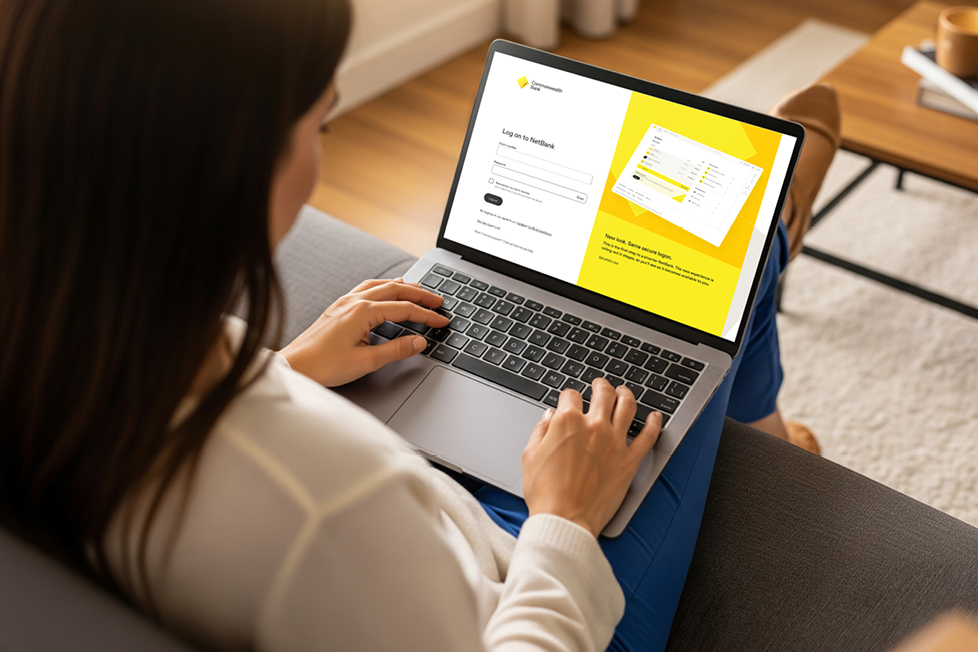
NetBank has been part of your everyday banking for years. Now, we’ve rebuilt it from the ground up with a clearer and simpler experience, making it easier to manage your money.
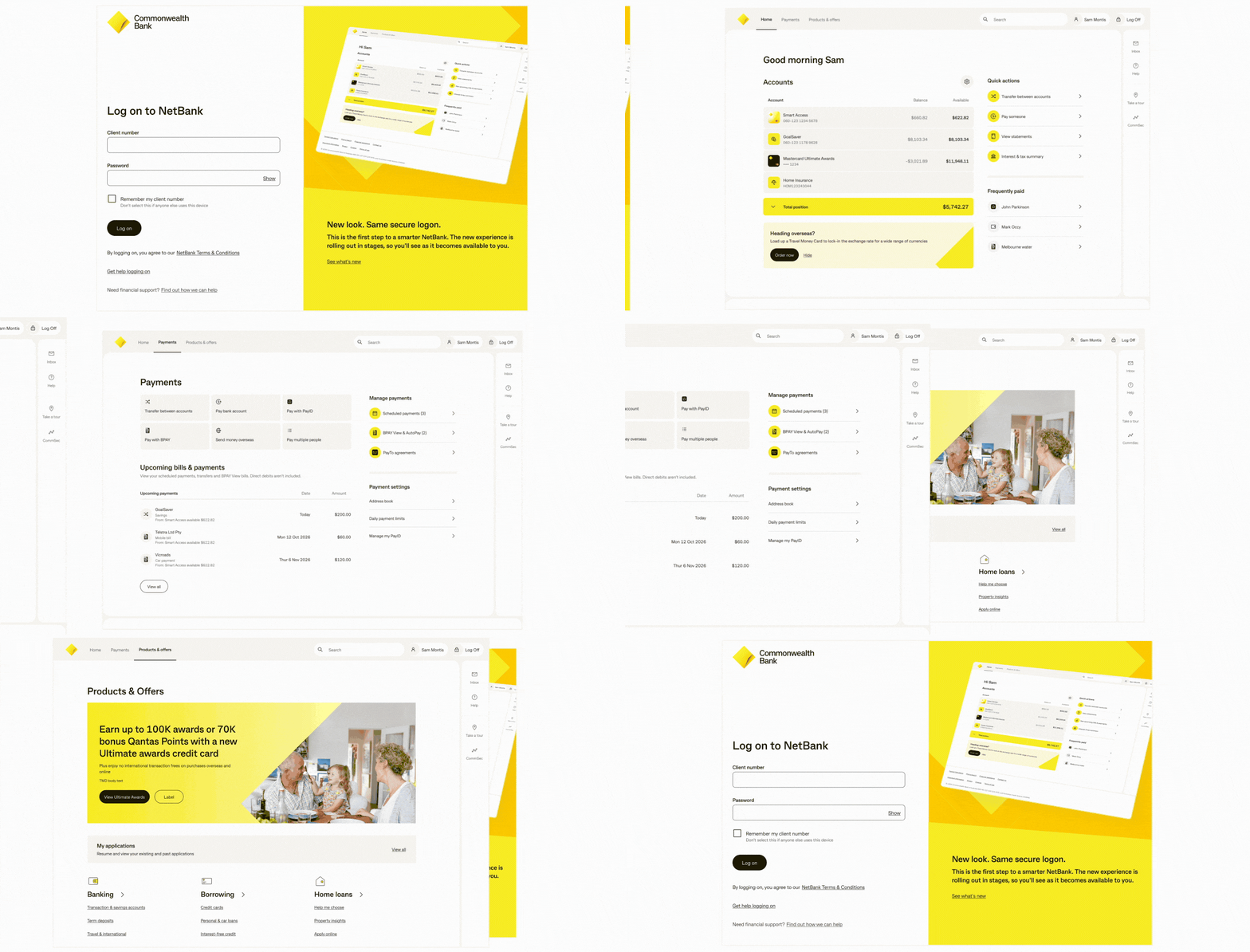
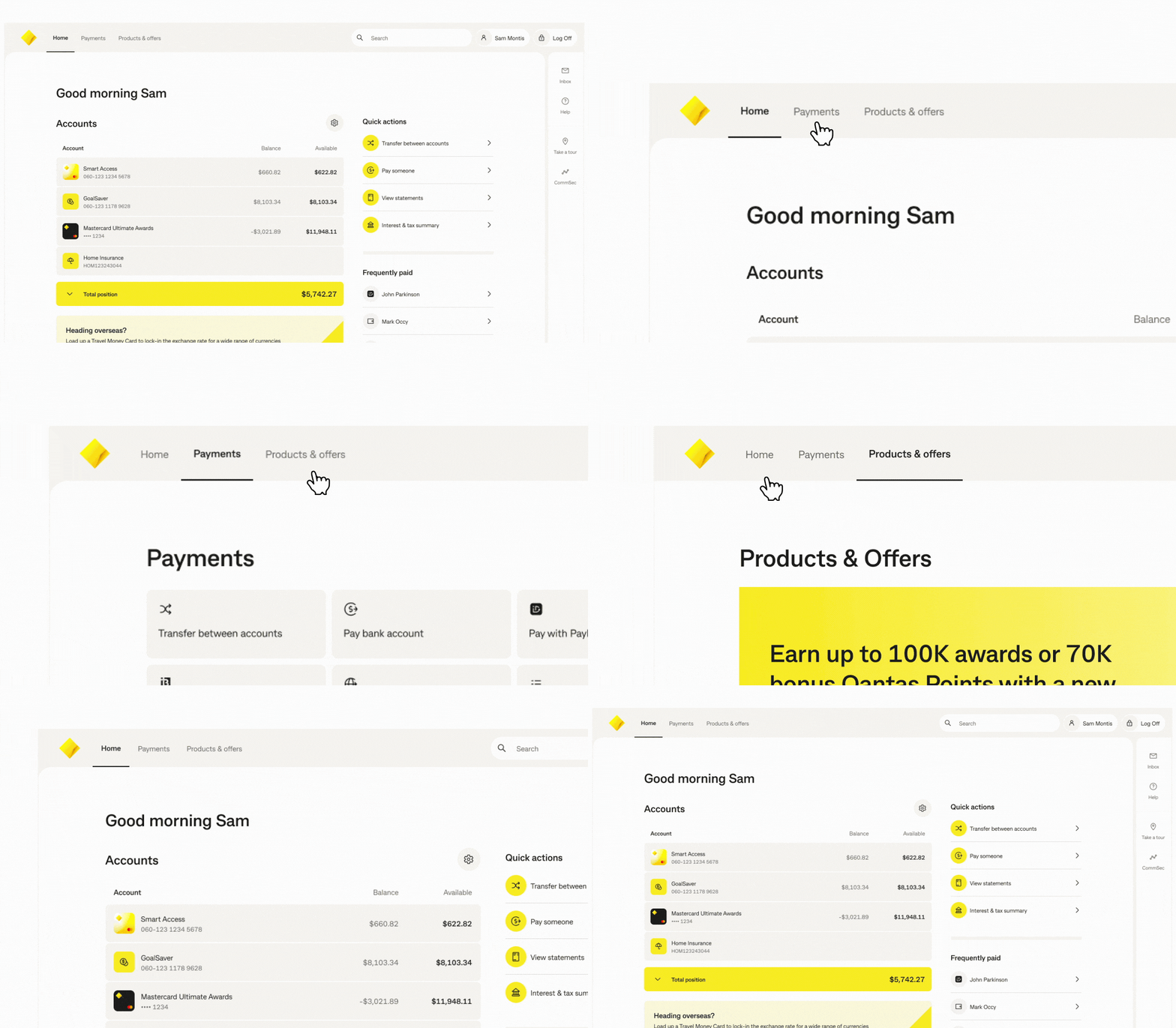
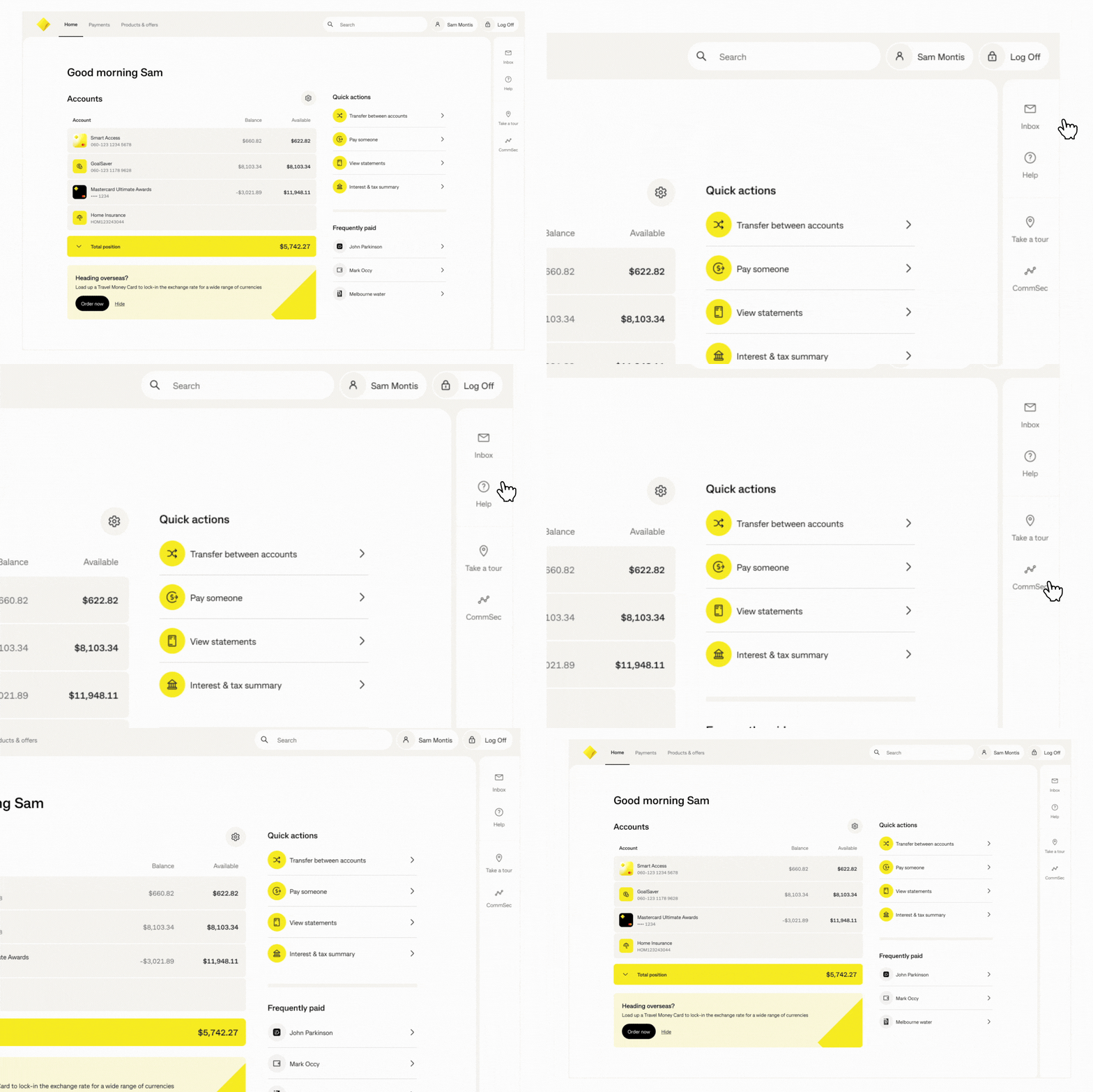
The new menu brings everything together into three clear sections so you can move through your banking quickly.
See your accounts and balances at a glance, with quick access to common actions and account settings.
Manage your payments in one place, including BPAY, PayID, and upcoming bills and payments.
Explore products, view personalised offers and apply online.
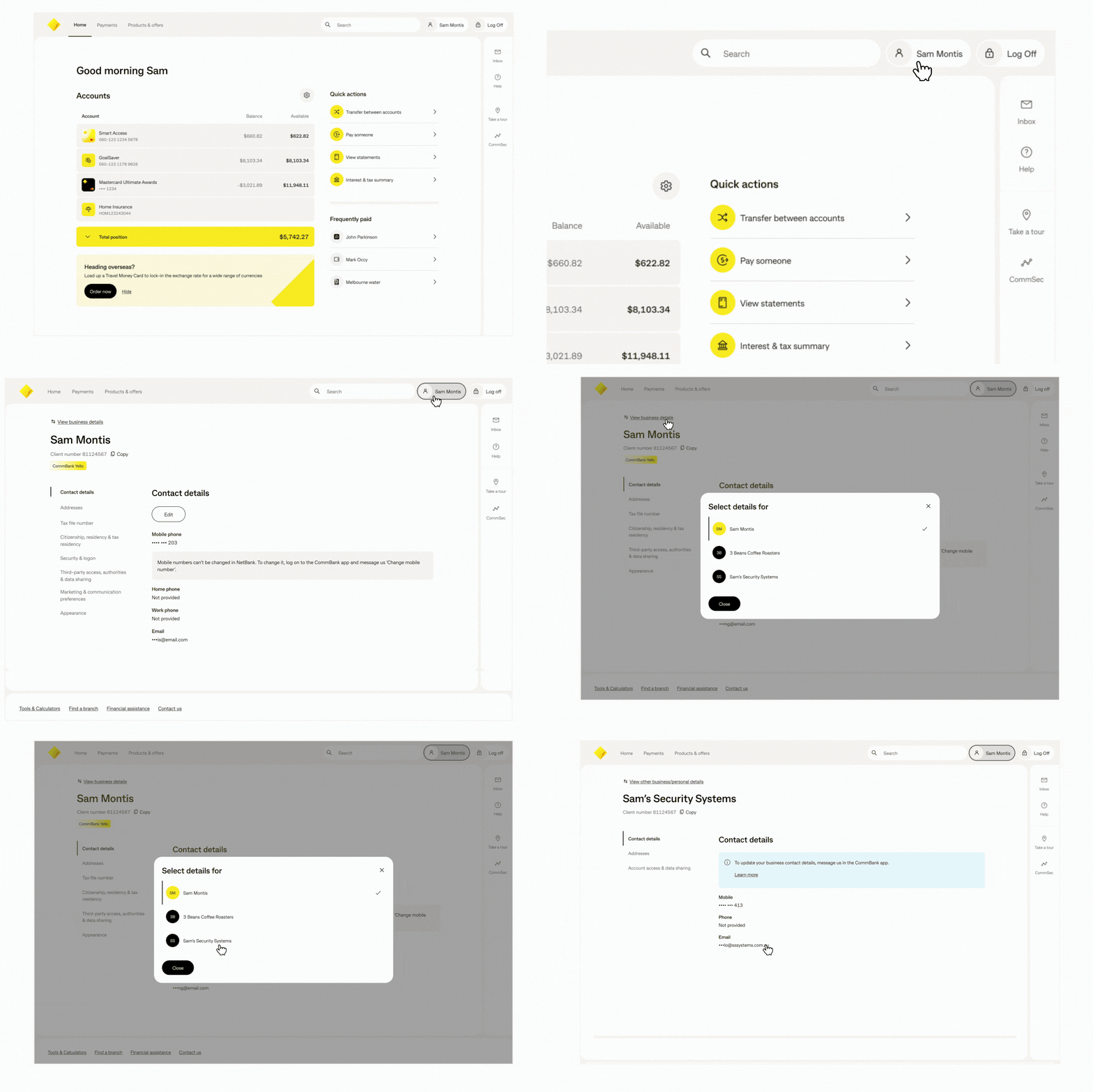
The new Profile page makes it easier to manage your information. Update your personal details, manage business account authorities, and switch seamlessly between your personal and business profiles - all from one place.
A new sidebar menu gives you quicker access to features like Inbox and Help, and CommSec, if you use it.
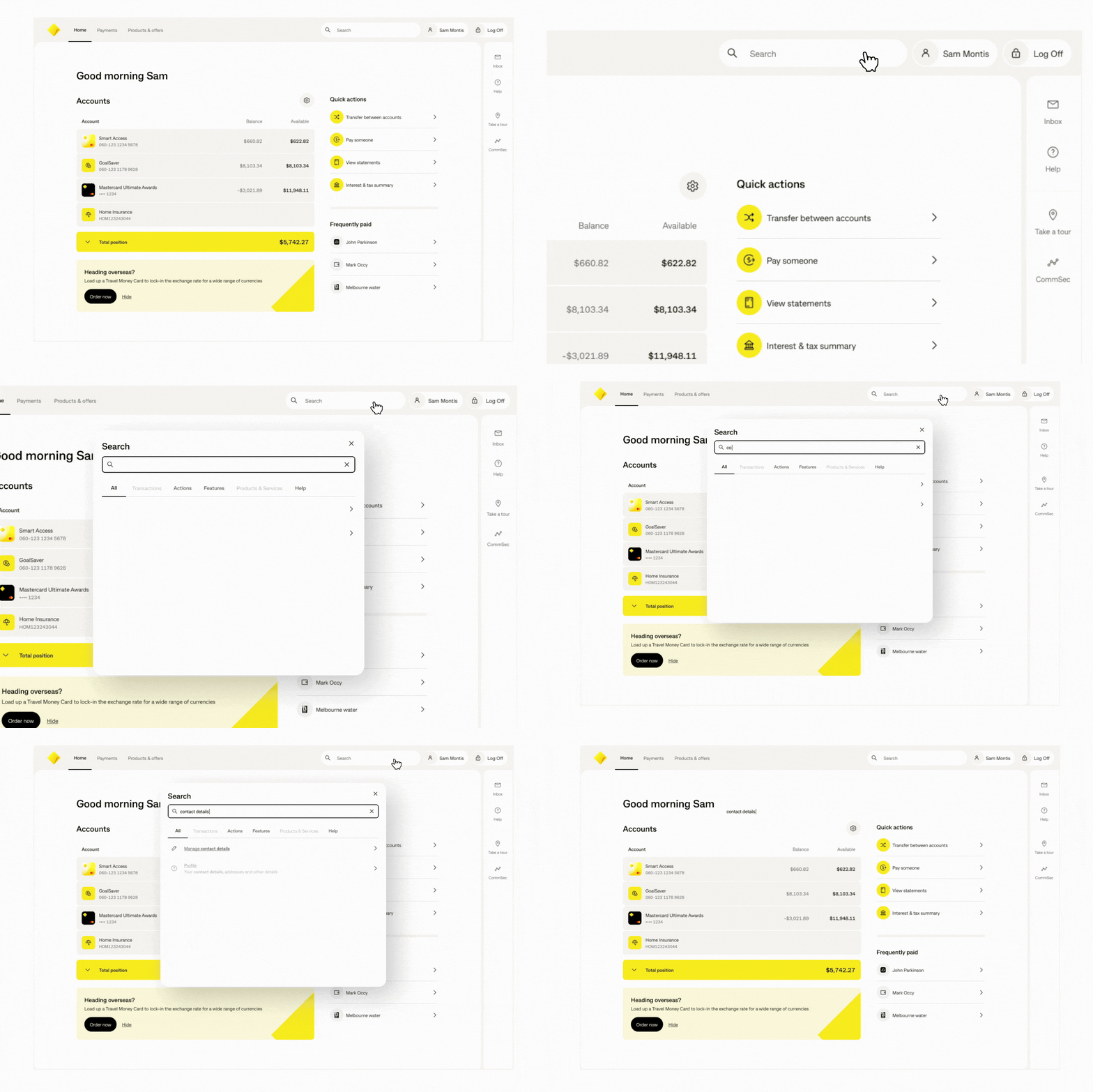
Search is now more powerful, helping you find transactions, tools and features faster.
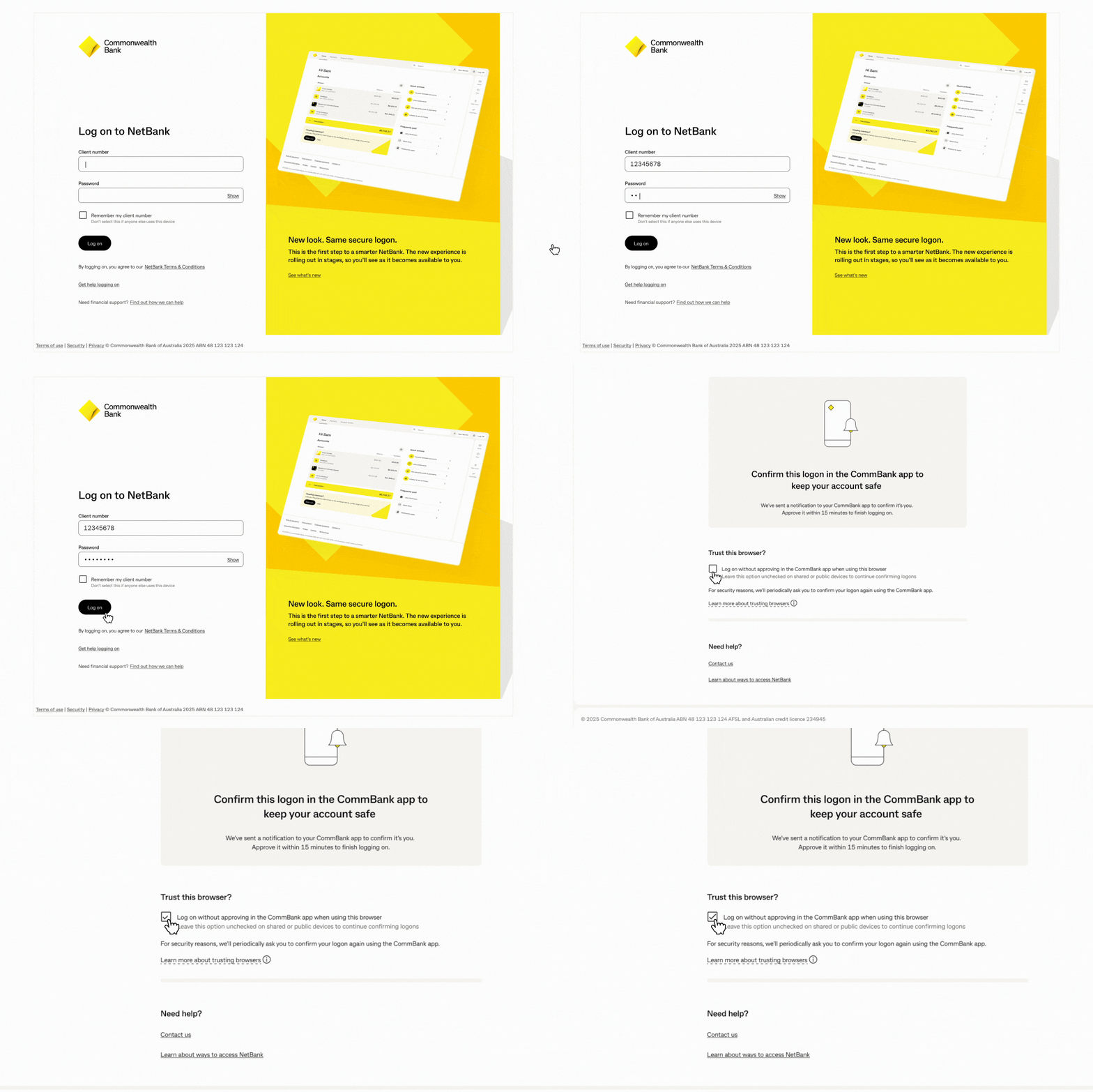
Log on quickly from trusted browsers and get straight to your banking. Simply select Trust this browser to make future logons faster and easier.
Start the tour when you log on to quickly learn your way around. You can take the tour again at any time from the sidebar menu.
Looking for help while you’re banking? Log on to NetBank and select Help from the sidebar menu for answers, guidance and support.
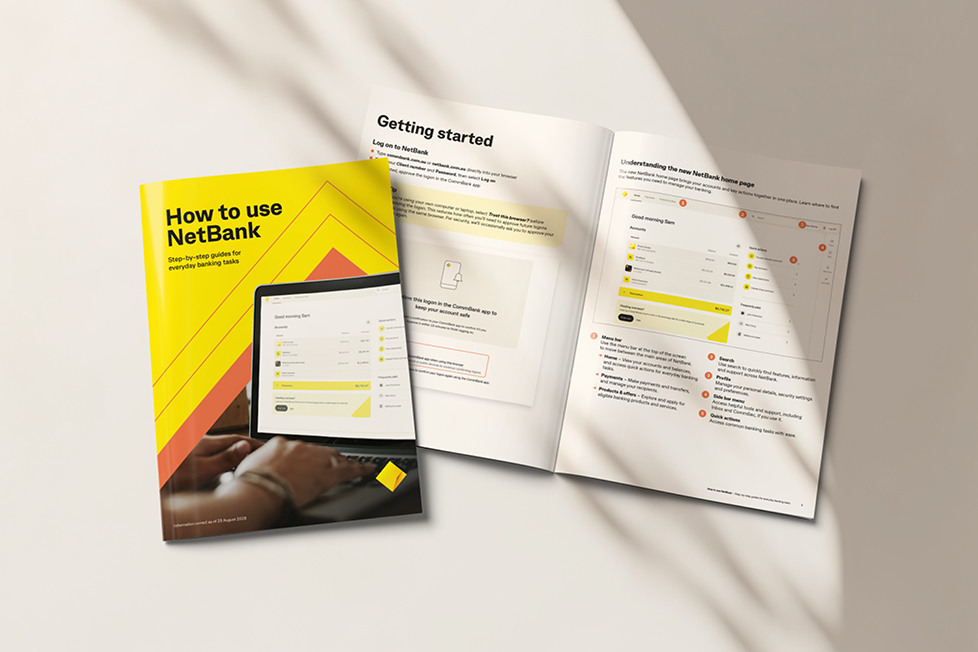
Learn how to use Netbank with a guide that uses simple language and images to explain common banking tasks and features.
Includes step-by-step instructions, screenshots and tips to help you complete everyday banking tasks quickly and confidently. View the guide online, download and print it at home, or pick up a printed copy from your nearest branch.
During periods of change, scammers may impersonate CommBank to trick you into clicking fake links or sharing personal information.
Never click a link in an email or text message claiming to be from CommBank to access your banking. Always type commbank.com.au or netbank.com.au directly into your browser or use the CommBank app.
The new NetBank is an updated version of our online banking with a simpler design and navigation and overall, a more streamlined experience for everyday banking.
We’re modernising NetBank to make it simpler to use, improve performance and help you complete everyday banking tasks more easily.
You'll notice a new logon page, simpler navigation menus and a clearer layout that helps you complete everyday banking tasks with ease.
You’ll still log on the same way, with your existing client number and password. Your accounts and saved information stay the same, and you can continue doing your everyday banking as usual.
We’re rolling out the new NetBank in stages from late August, so you may see it now or a little later. Until then, you can continue using your current NetBank as usual.
Yes. Protecting your banking remains a priority, and the new NetBank includes the security measures you expect from CommBank.
The new NetBank has been designed to make everyday banking simpler. While most everyday banking features are available, some features have changed as part of the update.
Some features are available another way, such as in the CommBank app or by contacting us or visiting a branch. Other features are no longer available.
Find out what’s changed for each feature, what options are available and where to get help.
Some tasks may look a little different or follow slightly different steps, but they're designed to be simpler and easier to complete.
You can take the tour when you first log on, access Help from the sidebar menu, or browse our online how-to guide. If you need more support, we're here to help — you can contact us or visit your nearest branch.
No action is required. You can keep using NetBank as usual, just log on as you normally would.
Yes. The CommBank app isn't changing, and you can continue using it as you do today.
If you use a password manager to save your NetBank logon details, it may not recognise the new logon page the first time you visit. After your first successful logon, you may need to update or re-save your credentials. Remember, your client number and password haven't changed.
Need to find your client number? You can:
- Click Select all to download all statements for that financial year, or
- Tick the box next to specific statements
You can add, remove or update business authorities in two ways:
Option 1: From an account
Option 2: From your profile
NetBank is an electronic banking service provided by Commonwealth Bank of Australia. Use of NetBank is subject to the NetBank Terms of Use and the Electronic Banking Terms and Conditions.